
Are constant buffering interruptions ruining your streaming experience? Smooth playback is essential for enjoying your favorite movies and TV shows without frustration. In this IPTV Buffering Fix Guide, we’ll show you how to troubleshoot common issues and optimize your IPTV setup, helping you achieve stable, high-quality, and uninterrupted streaming.

With the growing popularity of IPTV, streaming has become more convenient than ever. However, buffering still remains a common frustration. This guide will help you pinpoint and fix frequent issues, ultimately improving your viewing experience.
Key Takeaways
- Recognize the main causes behind IPTV buffering
- Learn effective troubleshooting steps for IPTV streaming
- Explore ways to optimize your setup for smoother playback
- Apply simple solutions to minimize buffering
- Boost the overall quality of your IPTV streams
Understanding IPTV Buffering Issues
IPTV buffering can be annoying, but understanding why it happens makes it easier to manage. These interruptions are a frequent challenge that can seriously impact your streaming quality.
What Causes IPTV Buffering?
A number of factors can lead to IPTV buffering, such as:
- Network Bandwidth Limitations: Slow or insufficient internet speeds often cause buffering.
- Server-Side Problems: Issues or overloads on the IPTV server can create interruptions.
- Device Processing Capabilities: Your device’s power and performance can affect its ability to handle high-quality streams.
Network Bandwidth Limitations
One of the leading causes of IPTV buffering is insufficient bandwidth. A strong, stable internet connection is essential for smooth playback.
Server-Side Problems
At times, the buffering issue comes from the IPTV provider’s server. Overloaded or unstable servers can trigger delays and interruptions.
Device Processing Capabilities
Your streaming device also matters. Devices with weak processors may struggle to play high-resolution streams without buffering.

How Buffering Affects Your Viewing Experience
Buffering can seriously reduce the enjoyment of IPTV services. It causes interruptions, irritation, and an overall decline in viewing quality. Applying effective IPTV buffering solutions and using IPTV streaming optimization methods can greatly improve your stream performance.
When you understand the reasons behind IPTV buffering and take the right corrective steps, you can achieve a much smoother and more consistent streaming experience.
Diagnosing Your IPTV Buffering Problems
IPTV buffering is annoying, but identifying the source of the problem is the first step toward resolving it. To troubleshoot correctly, you must recognize the symptoms and understand the possible causes of the buffering.
Common Symptoms of Poor IPTV Performance
Poor IPTV performance can appear in several ways—frequent buffering, low video quality, and slow channel switching. If you notice any of these issues, it’s important to determine what’s causing them. Common signs include:
- Constant pauses or buffering during streams
- Low-resolution or pixelated video
- Lag when switching channels
- Channels or content failing to load
Using Diagnostic Tools to Identify Issues
There are various diagnostic tools available that can help pinpoint the cause of your IPTV buffering. These tools offer valuable data on your network and device performance.
Speed Testing Your Connection
Performing an internet speed test is one of the easiest ways to find out if your connection is leading to IPTV buffering. Make sure your internet speed meets the recommended requirements for IPTV streaming.
Monitoring Network Traffic
Network monitoring can reveal whether other devices are consuming too much bandwidth, which may cause buffering. Use network analysis tools to view and manage traffic for optimal performance.
Device Performance Analysis
Evaluating your device’s performance is also important, as hardware limitations can affect how well IPTV streams run. Review your device specifications and make sure it is capable of handling the IPTV app you’re using.
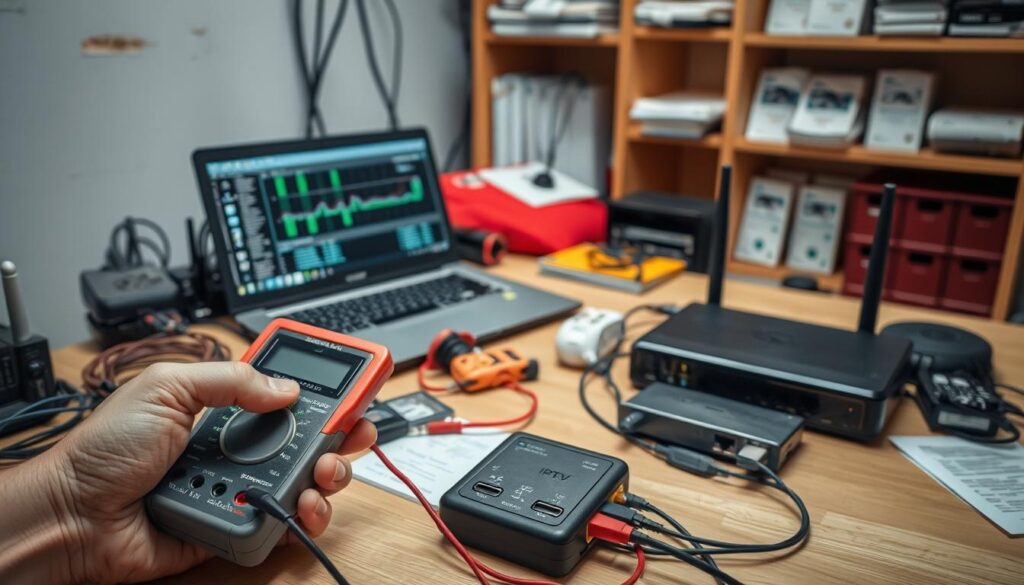
By using these diagnostic tools and recognizing the common signs of poor IPTV performance, you can more accurately pinpoint and resolve buffering issues. Taking this proactive approach is an effective IPTV troubleshooting tip that can greatly improve your overall viewing experience.
IPTV Buffering Fix Guide: Network Solutions
A smooth IPTV streaming experience begins with a strong and well-optimized network. To reduce buffering and keep your streams running seamlessly, it’s important to understand your network’s capabilities and adjust them when necessary.
Internet Speed Requirements for Different Stream Qualities
Different stream resolutions demand specific internet speeds. Knowing these requirements is essential for preventing IPTV buffering.
SD, HD, and 4K Bandwidth Needs
Standard Definition (SD) typically needs at least 3 Mbps. High Definition (HD) streams require 5–8 Mbps, while 4K Ultra HD needs 25 Mbps or more. Making sure your internet plan meets these speeds is an important first step in eliminating IPTV buffering.
Managing Multiple Streams
If several devices are streaming at once, your total bandwidth must be sufficient for all streams. For example, two devices streaming HD simultaneously will require roughly 10–16 Mbps. Using a bandwidth-management tool can help prioritize IPTV traffic and limit buffering.
Optimizing Your Wi-Fi Connection
A properly optimized Wi-Fi setup can noticeably reduce buffering. This involves choosing the right Wi-Fi channel and reducing any signal interference.
Channel Selection and Interference
Apps like Wi-Fi analyzers can help you locate the least congested channel. Switching to a clearer channel can improve your signal strength and overall stability.
Router Placement Tips
For better signal performance, position your router in a central, elevated spot—away from walls, appliances, and electronics. Keeping your router’s firmware updated also ensures optimal performance.
Benefits of Wired Ethernet Connections
For maximum stability, using a wired Ethernet connection is recommended. Ethernet is less affected by interference and offers more consistent speeds, which helps prevent buffering during IPTV streaming.
Implementing these network optimizations can greatly enhance your IPTV experience, allowing you to watch content without interruptions.
Device-Specific Optimization Techniques
Optimizing the device you’re using for IPTV is just as important as optimizing your network. Each device has its own features that, when improved, can significantly boost streaming performance.
Android TV Box Optimization
Android TV boxes are widely used for IPTV thanks to their flexibility and customization options.
RAM Management and Cache Clearing
Clear your cache regularly and close unused apps to free memory and boost performance.
Background App Control
Disable or uninstall unnecessary background apps to conserve system resources and improve streaming smoothness.
Amazon Fire Stick Tweaks
The Amazon Fire Stick is another popular IPTV device. Fine-tuning its settings can enhance your streaming quality.
System Resource Management
Close unused applications and keep enough free storage to ensure the device runs efficiently.
Storage Optimization
Remove apps or files you no longer need. If supported, consider adding external storage to keep the device running smoothly.
Smart TV Settings for Better IPTV Performance
Many Smart TVs include IPTV apps or support installing them. Updating your TV’s software and adjusting specific settings can significantly improve performance. Some Smart TVs even allow network prioritization for better streaming.
IPTV Application Settings and Configurations
Fine-tuning your IPTV app settings can drastically improve playback quality. Proper configurations help reduce buffering and improve video performance.
Buffer Size Adjustments
Increasing your buffer size may help smoother playback, though it can slightly delay stream start times.
Finding the Optimal Buffer Setting
Test several settings to find the ideal balance between smooth playback and minimal delay for your connection.
Custom Player Configurations
Many IPTV apps allow custom player adjustments, helping optimize performance for different stream types.
Video Quality Settings
Video quality affects how much bandwidth and processing power your device uses.
Balancing Quality and Performance
Choose a video quality level that your connection and device can handle without interruptions.
Adaptive Streaming Options
Enabling adaptive streaming allows the video quality to automatically adjust based on your internet speed, making the experience smoother.
Player Selection and Configuration
Different media players can offer improved stability and compatibility for IPTV.
Key Considerations:
- Device compatibility
- Support for multiple streaming protocols
- Options to adjust buffer size or quality
Advanced Troubleshooting for Persistent Buffering
If buffering continues even after optimizing your network, device, and app settings, it may be time to apply advanced troubleshooting methods.
VPN Solutions for ISP Throttling
Internet providers sometimes throttle streaming services. Using a VPN can hide your traffic and help prevent throttling.
Selecting the Right VPN for IPTV
Choose VPNs with fast servers, strong encryption, and no logs—such as ExpressVPN or NordVPN.
Optimal Server Locations
For best results, connect to a server near your physical location or near your IPTV provider’s server.
| VPN Provider | Server Locations | Speed |
|---|---|---|
| ExpressVPN | 3000+ servers in 94 countries | High |
| NordVPN | 5000+ servers in 60 countries | High |
DNS Configuration Changes
Adjusting your DNS settings to faster alternatives can improve internet responsiveness.
Public DNS Alternatives
Google Public DNS and Cloudflare DNS often provide faster performance than ISP-default DNS servers.
Setting Up Smart DNS
Smart DNS can bypass geo-restrictions and improve stream stability. Configure your device with the DNS values provided by your service or VPN.
Traffic Prioritization on Your Router
Routers with Quality of Service (QoS) options allow you to prioritize IPTV traffic. Assigning higher priority to IPTV helps reduce buffering.
Hardware Upgrades to Eliminate Buffering
Improving your hardware can greatly enhance streaming stability and reduce buffering.
Router Recommendations for IPTV Streaming
Your router plays a major role in IPTV performance.
Dual-Band vs. Tri-Band Options
- Dual-band routers provide two frequency bands and reduce interference.
- Tri-band routers add a third band that can be dedicated to streaming, reducing congestion.
QoS-Enabled Routers
Routers with QoS controls let you prioritize IPTV devices for a more reliable stream.
| Router Type | Features | IPTV Benefits |
|---|---|---|
| Dual-Band | Two frequency bands | Less interference, smoother playback |
| Tri-Band | Three frequency bands | Dedicated streaming band |
| QoS-Enabled | Traffic prioritization | Ensures IPTV gets sufficient bandwidth |
Streaming Device Upgrades
Upgrading your device can also help eliminate buffering.
Processing Power Requirements
Choose devices with at least a quad-core processor to handle higher-quality streams reliably.
Storage and Memory Considerations
Adequate RAM and storage prevent slowdowns and improve overall streaming performance.
Working with Your IPTV Service Provider
If buffering persists, contacting your IPTV provider can help you identify service-side issues.
When to Contact Your Provider
If basic troubleshooting hasn’t resolved the buffering, reach out to them.
Identifying Provider-Side Issues
Check your provider’s outage or status page to quickly see if issues exist on their end.
Effective Communication Strategies
Have your account details ready and clearly describe the problem, along with steps you’ve already taken.
Switching Servers and Connection Points
Your provider may be able to place you on a faster or less congested server.
Finding the Optimal Server
Testing different servers may reveal which one performs best for your location.
Testing Alternative Connection Methods
Switching from Wi-Fi to Ethernet or adjusting connection settings may reduce buffering.
Conclusion
Fixing IPTV buffering requires a well-rounded approach: network improvements, device optimization, and correct app configurations. By following the strategies in this IPTV Buffering Fix Guide, you can greatly enhance your viewing experience.
Start by confirming your internet speed, optimizing Wi-Fi, or switching to Ethernet. Adjust video quality settings, buffer size, and app configurations. If buffering continues, consider using a VPN for throttling issues or changing your DNS setup. Hardware upgrades can also make a noticeable difference. And when in doubt, contact your IPTV provider for assistance.
Combining these IPTV troubleshooting tips, along with smart IPTV buffering solutions and effective IPTV streaming optimization, will help you achieve smooth, reliable, and high-quality IPTV viewing.
FAQ
What is IPTV buffering, and why does it occur?
IPTV buffering happens when your device cannot download streaming data quickly enough, causing delays or pauses. Common causes include slow internet, busy servers, or limited device processing power.
How do I check my internet speed for IPTV?
Use any online speed test tool. You’ll need about 5 Mbps for SD, 25 Mbps for HD, and 50 Mbps for 4K streaming.
Why is Ethernet better than Wi-Fi for IPTV?
Ethernet offers a stronger, more stable connection with fewer interruptions and less interference.
How can I optimize my Android TV box for IPTV?
Clear the cache, manage background apps, and close unused applications to free up RAM.
Can changing DNS settings reduce IPTV buffering?
Yes—switching to faster public DNS servers or using Smart DNS may improve your connection.
How does a VPN help with IPTV buffering?
A VPN can prevent ISP throttling and improve stream stability by encrypting your traffic and masking your streaming activity.
How do I prioritize IPTV traffic on my router?
Enable your router’s QoS settings and assign IPTV devices higher priority.
When should I contact my IPTV provider?
If you’ve tried troubleshooting and buffering continues, reach out to your provider for server changes or further assistance.
What speeds are required for different streaming qualities?
SD requires about 5 Mbps, HD about 25 Mbps, and 4K around 50 Mbps or more.
How do I improve my Wi-Fi for IPTV?
Choose a clear Wi-Fi channel, reduce interference, and position your router centrally for better signal strength.